The Best Workflow Tools That Changed How I Build Photoshop Actions

The Best Workflow Tools That Changed How I Build Photoshop Actions

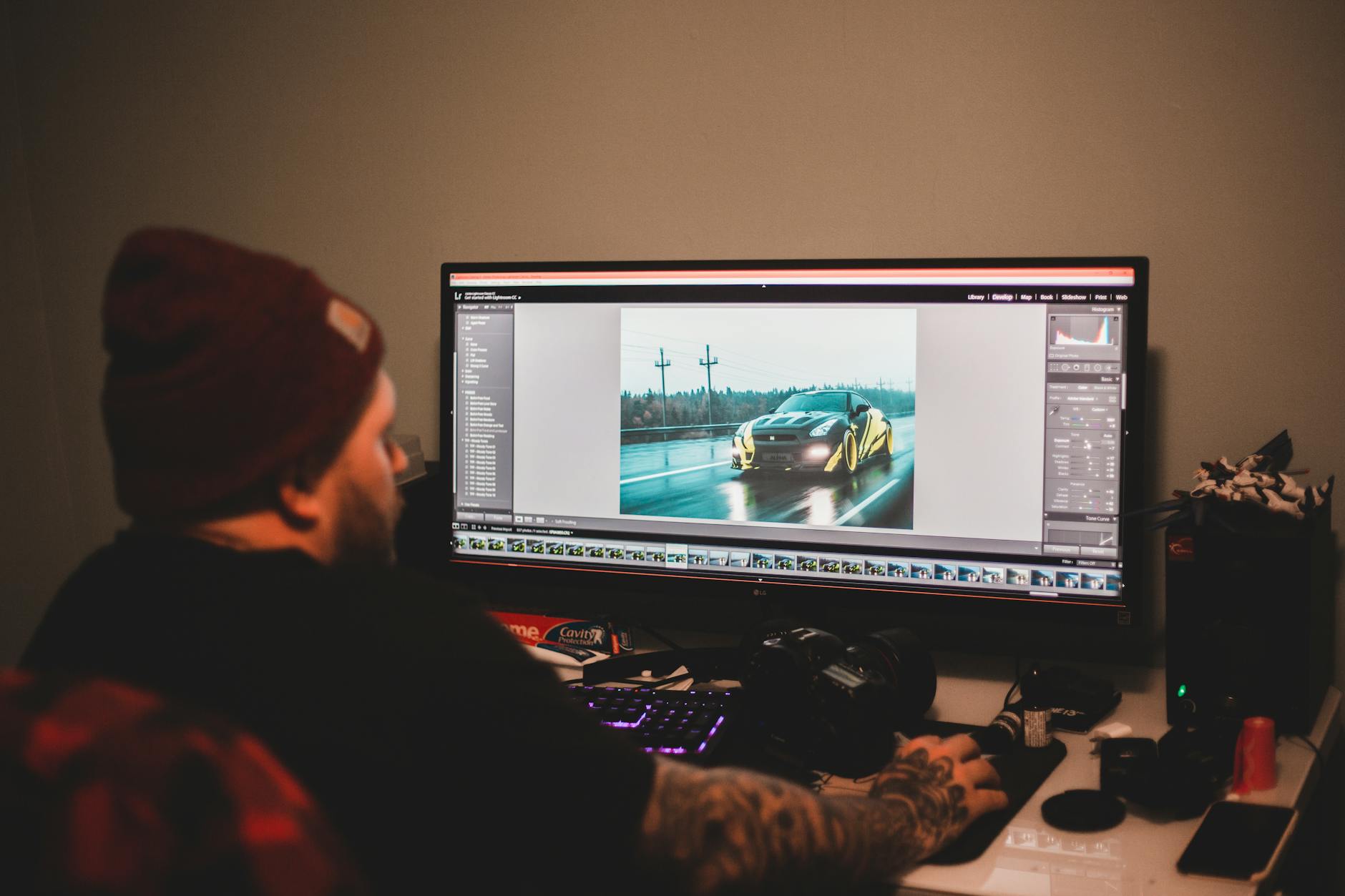
I’ve spent the last five years building Photoshop actions for designers, and I can tell you honestly: the right tools don’t just save time—they fundamentally change what’s possible in your workflow. I’m talking about going from manually recording actions to architecting complex, intelligent workflows that handle edge cases and variations automatically. Why Generic Tools Aren’t Enough When I started, I tried using only Photoshop’s native action recorder. It works fine for simple tasks—apply a filter, resize, export.
Automating Photoshop with Scripts: The Workflow Game-Changer I Wish I'd Known Earlier

Automating Photoshop with Scripts: The Workflow Game-Changer I Wish I'd Known Earlier

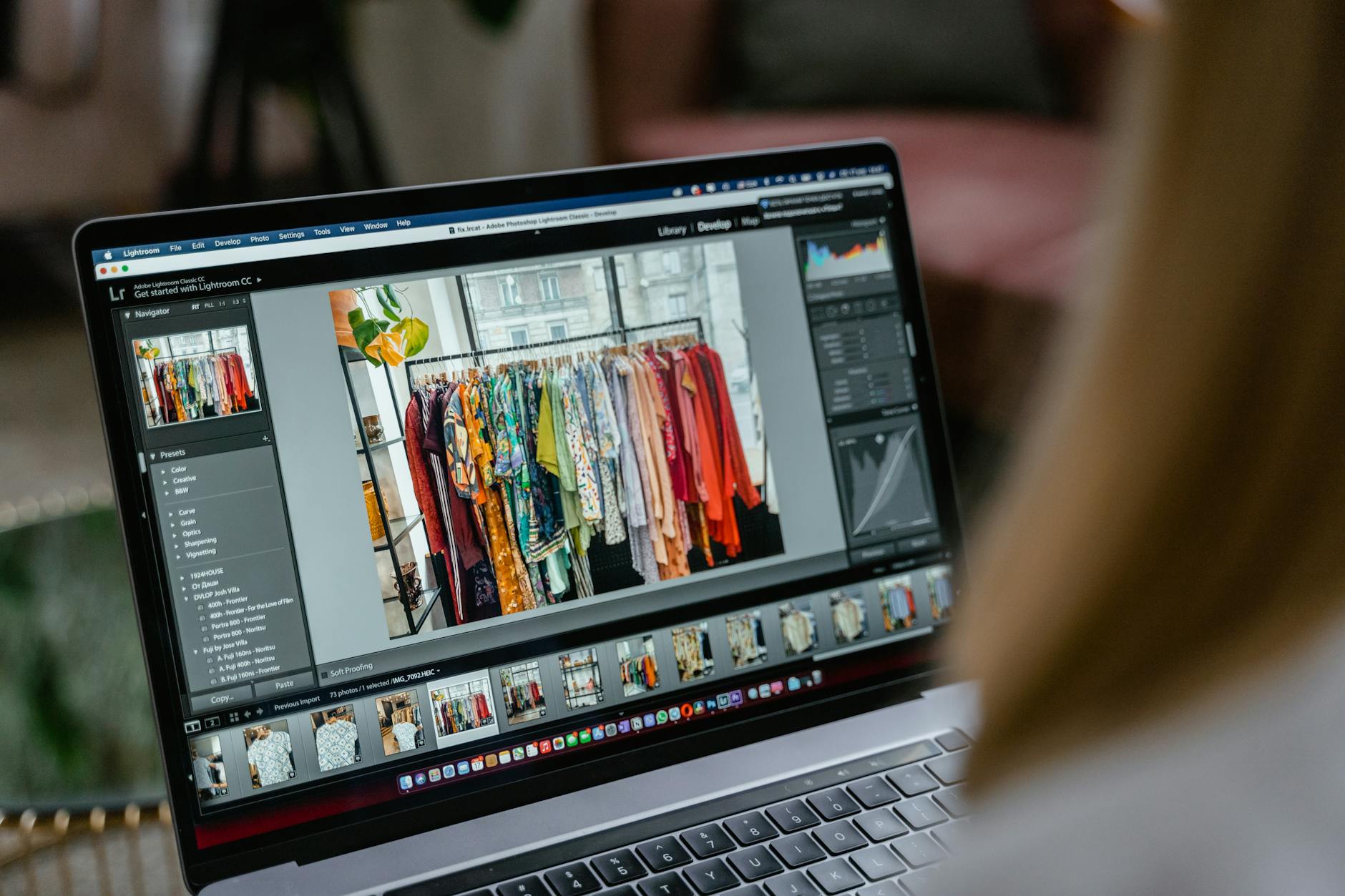
I spent three years doing the same tedious tasks in Photoshop before I realized how much time I was actually wasting. Resizing images, applying the same adjustments, renaming layers, exporting to multiple formats—it added up to hours every single week. That’s when I dove deep into Photoshop automation scripts, and honestly, I’m kicking myself for not starting sooner. The Difference Between Actions, Presets, and Scripts Before we get into the heavy lifting, let me clarify something that confused me at first.

Color Lookup Tables (LUTs) for Photoshop: The Workflow Game-Changer You're Probably Sleeping On

Color Lookup Tables (LUTs) for Photoshop: The Workflow Game-Changer You're Probably Sleeping On

Color Lookup Tables (LUTs) for Photoshop: The Workflow Game-Changer You’re Probably Sleeping On I didn’t fully appreciate LUTs until I was color grading my 47th product shot of the day and realized I could apply a complex, multi-layer grading setup in literally one click. If you’re still manually building adjustment layers for every single image, I need to tell you about 3D LUTs—because they’ll fundamentally change how you work. What Actually Is a LUT?

Automating Photoshop with Scripts: The Workflow Game-Changer You're Missing

Automating Photoshop with Scripts: The Workflow Game-Changer You're Missing

I spent three years manually resizing product photos for an e-commerce client before I realized I was wasting roughly 15 hours every week. That’s when I started seriously digging into Photoshop automation scripts—and honestly, it’s been one of the best technical investments I’ve made as a designer. If you’re stuck in a loop of repetitive tasks—resizing, renaming, color correcting, or exporting in multiple formats—automation scripts are your answer. I want to share what I’ve learned about making scripts work for your workflow, not against it.

The Best Workflow Tools to Supercharge Your Photoshop Actions

The Best Workflow Tools to Supercharge Your Photoshop Actions

The Best Workflow Tools to Supercharge Your Photoshop Actions I’ve spent years building Photoshop actions and presets, and I’ve learned something crucial: Photoshop alone isn’t enough. The real magic happens when you layer complementary tools around your actions to create a seamless editing pipeline. Let me share the tools that have genuinely transformed how I work, and more importantly, how you can use them without getting overwhelmed. Why Tool Stacking Actually Matters Before I jump into specific recommendations, I want to be honest about something: adding more tools doesn’t automatically make you faster.

Building Custom Presets in Photoshop: Why One-Size-Fits-All Isn't Enough

Building Custom Presets in Photoshop: Why One-Size-Fits-All Isn't Enough

Building Custom Presets in Photoshop: Why One-Size-Fits-All Isn’t Enough I spent two years using other people’s presets before I realized I was wasting time. Sure, they looked nice in the demo videos, but they never quite fit my editing style or the specific cameras I was working with. The turning point came when I started building my own custom presets, and honestly, it’s transformed how fast I can work. Here’s what I’ve learned: custom presets aren’t just for the advanced users.

Why Built-In Action Cameras Matter for Your Mobile Photography Workflow

Why Built-In Action Cameras Matter for Your Mobile Photography Workflow

The Hardware-Workflow Connection We’ve Been Missing I’ve been thinking a lot lately about how our gear choices impact our post-processing pipeline. Most of us focus on Photoshop actions and presets once the image is already on our computers, but what if I told you that the camera itself is becoming part of that workflow? Recent developments in rugged smartphone design have me genuinely excited. Manufacturers are now integrating dedicated pop-out action cameras directly into their devices, and this isn’t just a gimmick—it’s a meaningful shift for creators who work across multiple capture scenarios.

Batch Automation in Photoshop: Process 100 Images While You Grab Coffee

Batch Automation in Photoshop: Process 100 Images While You Grab Coffee

I’ll be honest—the first time I set up proper batch automation in Photoshop, I felt like I’d unlocked a cheat code. What used to take me four hours of repetitive clicking now happens while I’m literally away from my desk. If you’re still processing images one-by-one, you’re leaving serious productivity gains on the table. Why Batch Processing Actually Matters Before I dive into the how, let me explain why this matters beyond just “saving time.

When Athletes Become Photographers: Caitlin Clark's NBA Courtside Moment Shows the Power of Creative Crossover

When Athletes Become Photographers: Caitlin Clark's NBA Courtside Moment Shows the Power of Creative Crossover

When Your Day Job Isn’t Behind the Lens I’ve noticed something fascinating happening lately in professional sports: the athletes we typically photograph are now picking up cameras themselves. Last night, basketball sensation Caitlin Clark did exactly that, positioning herself courtside at an NBA game not as a player, but as a photographer capturing the action. This trend got me thinking about what it means for our creative workflows and the democratization of professional-level photography.

Best Free Photoshop Plugins 2026: Proven Tools to Supercharge Your Workflow

Best Free Photoshop Plugins 2026: Proven Tools to Supercharge Your Workflow

Best Free Photoshop Plugins 2026: Proven Tools to Supercharge Your Workflow I’ve been testing Photoshop plugins professionally for over a decade, and I can tell you with absolute certainty: the gap between paid and free plugins has narrowed significantly. Some of the best free Photoshop plugins 2026 offers rival premium solutions that cost hundreds of dollars. But here’s the catch—not all free plugins are created equal. Many are abandoned projects or poorly maintained tools that’ll slow your system to a crawl.

Samsung T9 vs SanDisk Extreme Pro vs Crucial X9 Pro — Best SSD for Photoshop Users

Samsung T9 vs SanDisk Extreme Pro vs Crucial X9 Pro — Best SSD for Photoshop Users

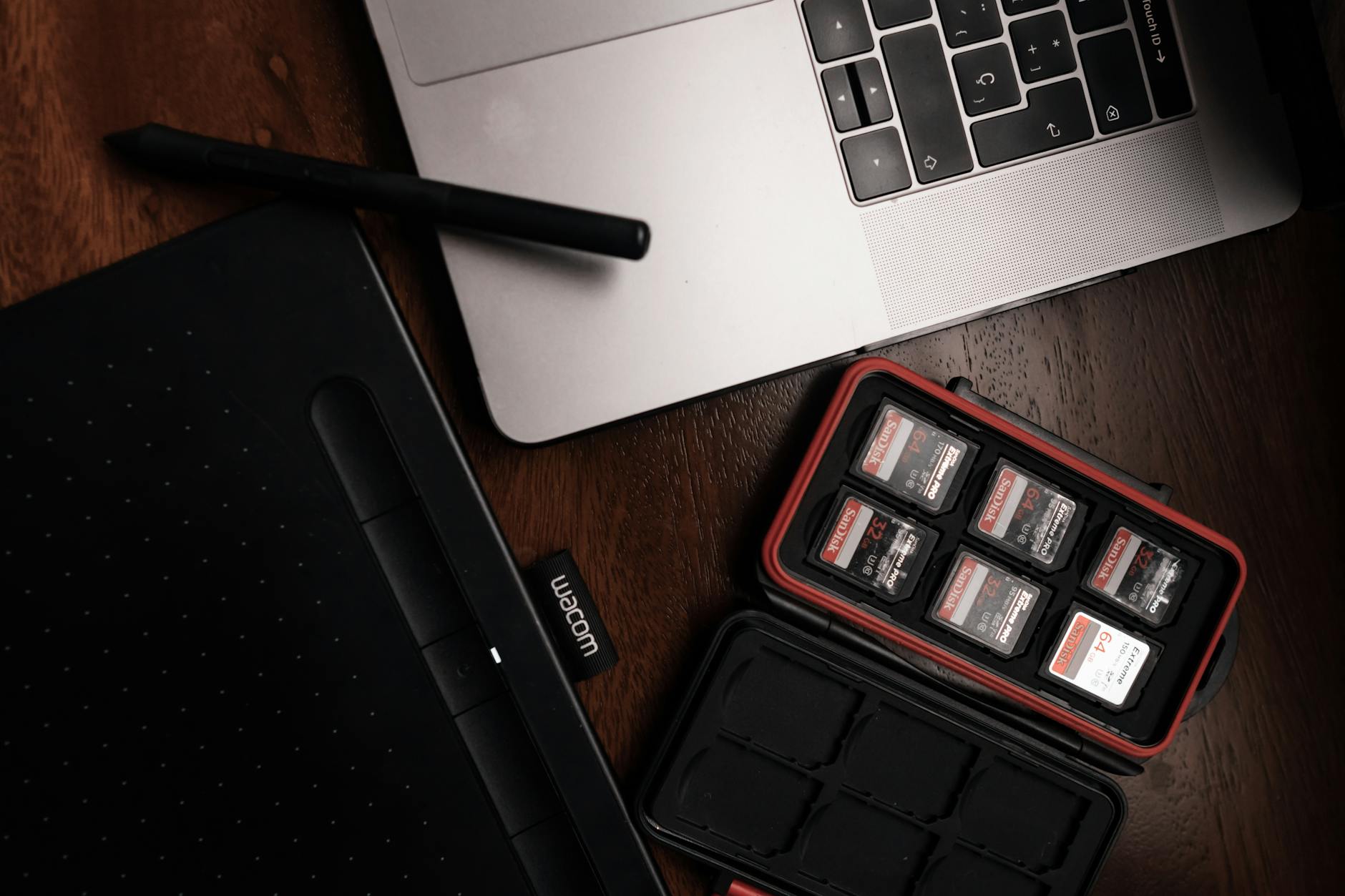
Samsung T9 vs SanDisk Extreme Pro vs Crucial X9 Pro — Best SSD for Photoshop Users I’ve been shooting, editing, and testing gear for years, and I can tell you that your storage solution matters way more than most photographers realize. A sluggish drive doesn’t just slow you down—it kills your creative momentum. You’re waiting for scratch disks to allocate, watching progress bars instead of tweaking curves, and honestly? That friction adds up.

Best External SSDs for Photoshop Scratch Disks in 2026

Best External SSDs for Photoshop Scratch Disks in 2026

Best External SSDs for Photoshop Scratch Disks in 2026 If you’ve ever watched Photoshop crawl to a halt while processing a massive composite or applying filters to a 500MB PSD file, you know the pain. Your internal drive is choking. Your RAM is maxed out. And suddenly you’re watching the spinning wheel of death instead of actually creating. That’s where a dedicated scratch disk comes in—and not just any external drive will do.